> ## Documentation Index
> Fetch the complete documentation index at: https://help.openfishingcup.com/llms.txt
> Use this file to discover all available pages before exploring further.
# Moderation
> Complete guide for moderating catches, flags, and comments as a tournament admin
# Moderation
As a Tournament Admin, you have access to moderation tools that help ensure fair play and data quality across the platform. This guide covers all moderation workflows available to you.
## Your Moderation Capabilities
| Capability | Available |
| ----------------------------------------- | :-------: |
| View catches in assigned competitions | ✅ |
| Approve catches | ✅ |
| Exclude catches from competitions | ✅ |
| Resolve flags | ✅ |
| Moderate comments (assigned competitions) | ✅ |
***
## Manage Catches Dashboard
Navigate to **Menu → Manage Catches** to access the catch moderation interface.
### Filters
The dashboard provides powerful filtering options:
| Filter | Options |
| --------------- | --------------------------------- |
| **Status** | Pending, Approved, Rejected |
| **Flags** | All, Flagged only, Unflagged only |
| **Checked** | All, Checked by admin, Unchecked |
| **Competition** | Filter by specific competition |
| **Date Range** | Start and end date |
| **Search** | Search by angler name |
 ### Catch List
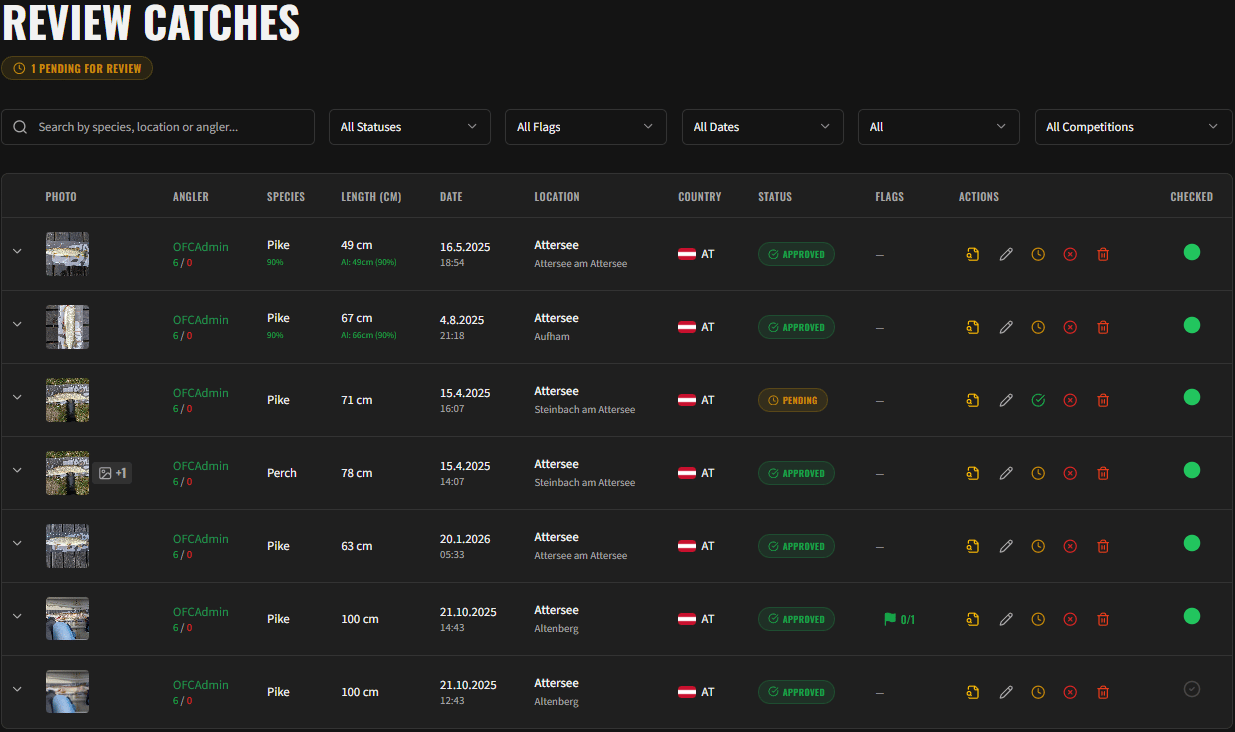
Each catch in the list displays:
* Angler name and avatar
* Species and length
* Catch date and location
* Current status (pending/approved/rejected)
* Flag count (if any)
* Whether it has been admin-checked
***
## Reviewing a Catch
Click on a catch to expand its details. The detail panel shows comprehensive information to help you make moderation decisions.
### AI Verification Metadata
The platform uses AI to analyse each catch submission. The following metadata is displayed:
| Field | Description |
| ------------------------ | -------------------------------------------------------------------- |
| **AI Species Detected** | The species identified by AI with confidence level (high/medium/low) |
| **AI Scale Detected** | Whether a measuring scale was detected in the photo |
| **AI Scale Confidence** | Confidence level of the scale detection |
| **AI Length (cm)** | The length estimated by AI from the photo |
| **AI Length Confidence** | Confidence level of the length measurement |
| **Authenticity Score** | Overall image authenticity score (0–100) |
### Location & Photo Data
| Field | Description |
| ------------------- | -------------------------------------- |
| **GPS Coordinates** | Latitude and longitude (if available) |
| **Location** | Named location and water body |
| **Country** | Country of the catch |
| **EXIF Date** | Original date from photo metadata |
| **Photo Age** | Hours between EXIF date and submission |
| **Altitude** | Altitude from GPS data (if available) |
### Photos
* **Main photo**: The primary catch photo with measuring scale
* **Extra photos**: Additional photos uploaded by the angler (viewable in lightbox)
### Catch List
Each catch in the list displays:
* Angler name and avatar
* Species and length
* Catch date and location
* Current status (pending/approved/rejected)
* Flag count (if any)
* Whether it has been admin-checked
***
## Reviewing a Catch
Click on a catch to expand its details. The detail panel shows comprehensive information to help you make moderation decisions.
### AI Verification Metadata
The platform uses AI to analyse each catch submission. The following metadata is displayed:
| Field | Description |
| ------------------------ | -------------------------------------------------------------------- |
| **AI Species Detected** | The species identified by AI with confidence level (high/medium/low) |
| **AI Scale Detected** | Whether a measuring scale was detected in the photo |
| **AI Scale Confidence** | Confidence level of the scale detection |
| **AI Length (cm)** | The length estimated by AI from the photo |
| **AI Length Confidence** | Confidence level of the length measurement |
| **Authenticity Score** | Overall image authenticity score (0–100) |
### Location & Photo Data
| Field | Description |
| ------------------- | -------------------------------------- |
| **GPS Coordinates** | Latitude and longitude (if available) |
| **Location** | Named location and water body |
| **Country** | Country of the catch |
| **EXIF Date** | Original date from photo metadata |
| **Photo Age** | Hours between EXIF date and submission |
| **Altitude** | Altitude from GPS data (if available) |
### Photos
* **Main photo**: The primary catch photo with measuring scale
* **Extra photos**: Additional photos uploaded by the angler (viewable in lightbox)
 ***
## Approving Catches
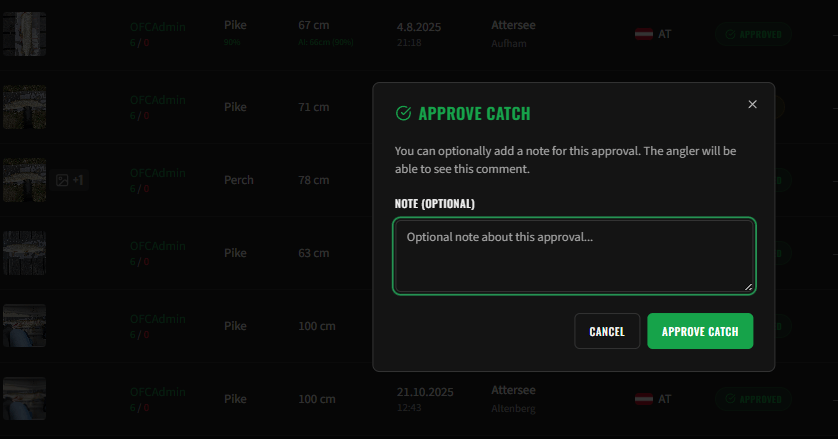
To approve a pending catch:
1. Review the catch details and AI verification data
2. Click the **Approve** button
3. Optionally add an **admin comment** (visible internally)
4. Confirm the approval
Approved catches are included in rankings and visible to all users.
***
## Approving Catches
To approve a pending catch:
1. Review the catch details and AI verification data
2. Click the **Approve** button
3. Optionally add an **admin comment** (visible internally)
4. Confirm the approval
Approved catches are included in rankings and visible to all users.
 ***
## Excluding Catches from Competitions
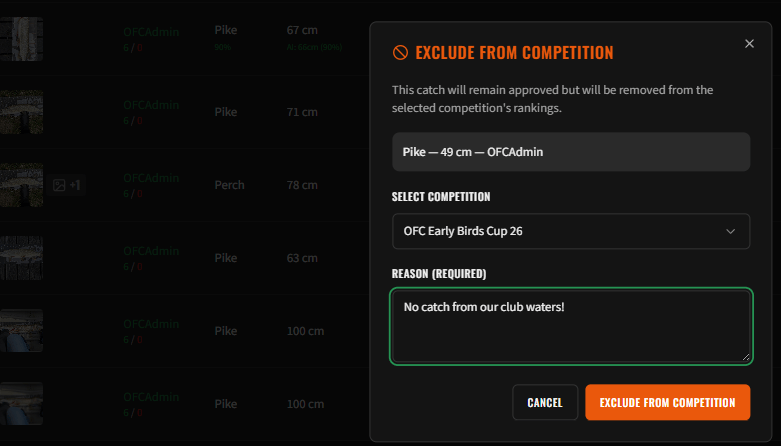
You can exclude a specific catch from one of your competitions without rejecting it entirely. The catch remains approved and visible, but does not count towards that competition's rankings.
### Excluding a Catch
1. Click the **Exclude from Competition** button on the catch
2. Select the competition
3. Enter a **reason** for the exclusion
4. Confirm
***
## Excluding Catches from Competitions
You can exclude a specific catch from one of your competitions without rejecting it entirely. The catch remains approved and visible, but does not count towards that competition's rankings.
### Excluding a Catch
1. Click the **Exclude from Competition** button on the catch
2. Select the competition
3. Enter a **reason** for the exclusion
4. Confirm
 ### Revoking an Exclusion
If you change your mind, you can revoke an exclusion:
1. Find the catch with the active exclusion
2. Click **Revoke Exclusion**
3. The catch will be re-included in the competition rankings
Rankings are automatically recalculated after any exclusion or revocation.
***
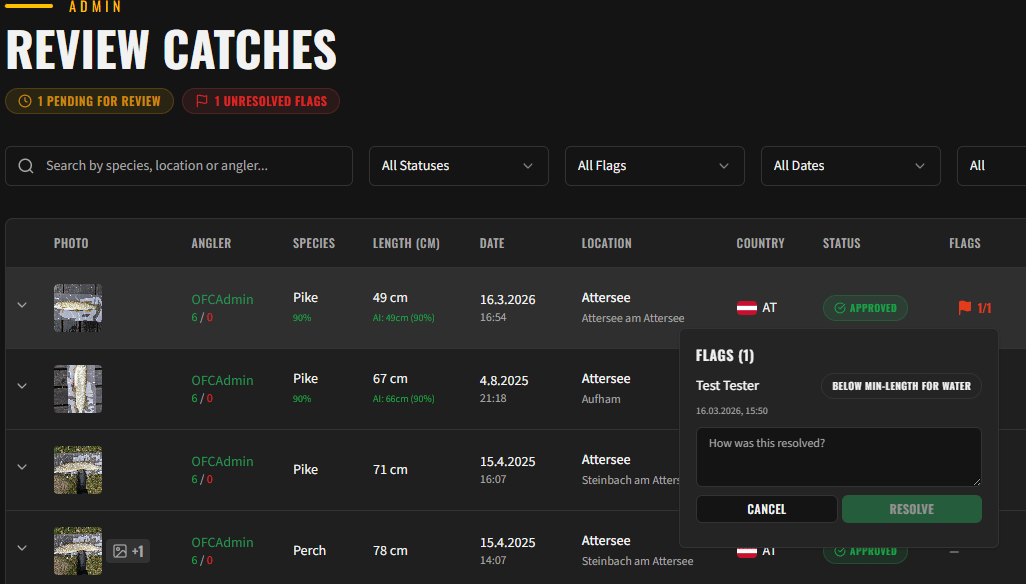
## Managing Flags
Users can flag catches they believe violate the rules. As a moderator, you are responsible for reviewing and resolving these flags.
### Flag Reasons
Users can flag a catch for the following reasons:
| Reason | Description |
| ------------------------ | ------------------------------------------ |
| **Length Incorrect** | The reported length appears wrong |
| **Closed Period** | The fish was caught during a closed season |
| **Wrong Species** | The fish species is incorrectly identified |
| **Below Minimum Length** | The fish is below the legal minimum length |
| **Protected Species** | The fish is a protected species |
| **Other** | Any other reason (free-text explanation) |
### Resolving a Flag
1. Review the flag reason and any message from the reporter
2. Click **Resolve Flag**
3. Enter a **resolution comment** explaining your decision
4. Confirm
The catch owner receives a **notification** when a flag on their catch is resolved.
### Revoking an Exclusion
If you change your mind, you can revoke an exclusion:
1. Find the catch with the active exclusion
2. Click **Revoke Exclusion**
3. The catch will be re-included in the competition rankings
Rankings are automatically recalculated after any exclusion or revocation.
***
## Managing Flags
Users can flag catches they believe violate the rules. As a moderator, you are responsible for reviewing and resolving these flags.
### Flag Reasons
Users can flag a catch for the following reasons:
| Reason | Description |
| ------------------------ | ------------------------------------------ |
| **Length Incorrect** | The reported length appears wrong |
| **Closed Period** | The fish was caught during a closed season |
| **Wrong Species** | The fish species is incorrectly identified |
| **Below Minimum Length** | The fish is below the legal minimum length |
| **Protected Species** | The fish is a protected species |
| **Other** | Any other reason (free-text explanation) |
### Resolving a Flag
1. Review the flag reason and any message from the reporter
2. Click **Resolve Flag**
3. Enter a **resolution comment** explaining your decision
4. Confirm
The catch owner receives a **notification** when a flag on their catch is resolved.
 ***
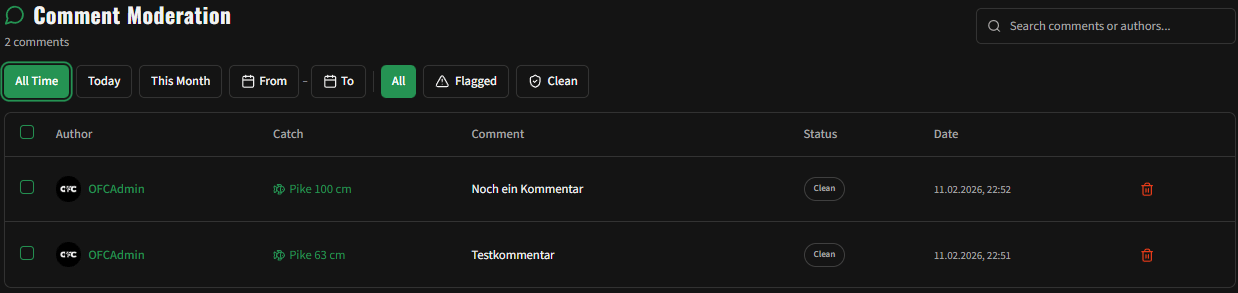
## Managing Comments
Navigate to **Menu → Manage Comments** to access the comment moderation dashboard.
You can see comments on catches relevant to your assigned competitions (matching species, country, and date range).
### Comment List
Each comment displays:
* Author name and avatar
* Comment content
* **Moderation status**: Clean ✅, Flagged ⚠️, or Blocked 🚫
* Creation date
### Filtering
* **Date Range**: Filter comments by date
* **Search**: Find specific comments
### Actions
| Action | Description |
| --------------- | ------------------------------------------------ |
| **View Catch** | Navigate to the catch this comment belongs to |
| **Delete** | Remove the comment permanently |
| **Bulk Delete** | Select multiple comments and delete them at once |
***
## Managing Comments
Navigate to **Menu → Manage Comments** to access the comment moderation dashboard.
You can see comments on catches relevant to your assigned competitions (matching species, country, and date range).
### Comment List
Each comment displays:
* Author name and avatar
* Comment content
* **Moderation status**: Clean ✅, Flagged ⚠️, or Blocked 🚫
* Creation date
### Filtering
* **Date Range**: Filter comments by date
* **Search**: Find specific comments
### Actions
| Action | Description |
| --------------- | ------------------------------------------------ |
| **View Catch** | Navigate to the catch this comment belongs to |
| **Delete** | Remove the comment permanently |
| **Bulk Delete** | Select multiple comments and delete them at once |
 ***
## Audit Trail
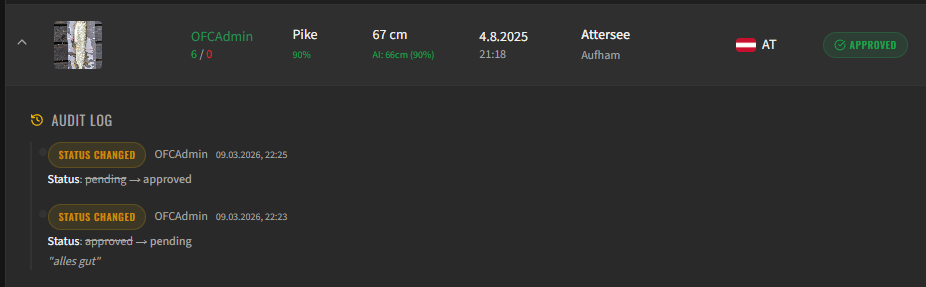
Every catch has an **audit timeline** that records all status changes and administrative actions. This provides full transparency and accountability.
To view the audit trail, expand the catch details and look for the **Audit Log** section.
### Logged Events
| Event | Details Recorded |
| ------------------ | ---------------------------------------------------- |
| **Created** | Initial catch data (species, length, location, date) |
| **Status Changed** | Old status → New status, admin who made the change |
| **Edited** | Which fields were changed, old → new values |
Each entry shows:
* **Timestamp** of the action
* **User** who performed it
* **Changed fields** with before/after values
* **Admin comment** (if provided)
***
## Audit Trail
Every catch has an **audit timeline** that records all status changes and administrative actions. This provides full transparency and accountability.
To view the audit trail, expand the catch details and look for the **Audit Log** section.
### Logged Events
| Event | Details Recorded |
| ------------------ | ---------------------------------------------------- |
| **Created** | Initial catch data (species, length, location, date) |
| **Status Changed** | Old status → New status, admin who made the change |
| **Edited** | Which fields were changed, old → new values |
Each entry shows:
* **Timestamp** of the action
* **User** who performed it
* **Changed fields** with before/after values
* **Admin comment** (if provided)